
Product successfully added to your cart
Quantity:
Total:
No products
Product successfully added to your cart
 Sell
Sell 

Do you have a feeling that the charged phone drops faster than normal? Do you think his before on a single charge, the phone lasted a lot, and that something has changed? A common problem is that users do not go into the settings of their phones, and this often leads to a larger and unnecessary expenditure of energy. The higher energy consumption is due to functions that work in the background and we do not remember to turn them off. Therefore, you can read our article and try our 15 tips to optimize your spending energy and increase the performance of your Apple iPhone. Most of the steps are universal and apply to all smartphones, such as Samsung phones. We advise you to read all the steps, even if you own a different brand of smartphone or tablet.
Lower the screen brightness: Lowering the screen brightness can significantly affect the charge of your phone. You can manually adjust the brightness or enable automatic brightness in Settings > Display & Brightness.
Enable auto-lock: Set your device to automatically lock after a shorter period of inactivity. This prevents the screen from staying on unnecessarily.
Disable push email: Push email constantly checks for new messages, consuming power from the battery so. Switch to manual retrieval or retrieve emails less frequently in Settings > Mail > Accounts > Fetch new data.
Disable unnecessary notifications: Limit notifications to essential apps to reduce the number of wake-ups and screen activations. Go to Settings > Notifications to manage your notification settings.
Disable background app refresh: Prevent apps from refreshing content in the background. Go to Settings > General > Background App Refresh and disable it for non-essential apps.
Restrict location services: Some apps use location services even when they are not actively being used. You can either disable location services entirely or limit them to specific apps in Settings > Privacy > Location Services.
Disable unnecessary wireless connections: Turn off Wi-Fi, Bluetooth, and AirDrop when you're not using them. You can access these settings through the Control Center or in the Settings app.
Use Wi-Fi instead of cellular data: When available, connect to Wi-Fi networks because they use less power than cellular data.
Disable unnecessary visual effects: Reduce motion, parallax effects, and dynamic backgrounds in Settings > Accessibility > Motion > Reduce Motion.
Limit widgets and live wallpapers: Widgets and live wallpapers can use up resources of battery so. Remove unnecessary widgets and switch to static wallpapers in Settings > Wallpaper > Choose a new wallpaper.
Manage app usage: Close unused apps running in the background by double-pressing the home button (or swiping up from the bottom on newer models) and dragging app windows to the side.
Enable Low Power Mode: Enable Low Power Mode in Settings >Battery, when your charge is very low. Reduces background activity and visual effects to extend the life of the battery.
Keep your software up-to-date: Install the latest iOS updates, as they often include optimizations and bug fixes that can improve the performance of the battery.
Restart your iPhone: restarting your device periodically can help resolve any software issues that may be contributing to excessive battery drain. battery and.
Check the usage of battery: Go to Settings >Battery, to identify applications or processes that consume a significant amount of power. If an app looks unusual, consider reinstalling or updating it.
Remember that the performance of the battery may vary depending on individual usage patterns and the age of the device. If you continue to experience significant exhaustion of the battery. Well, it might be worth contacting Restore.bg consultants for additional help.


Blog
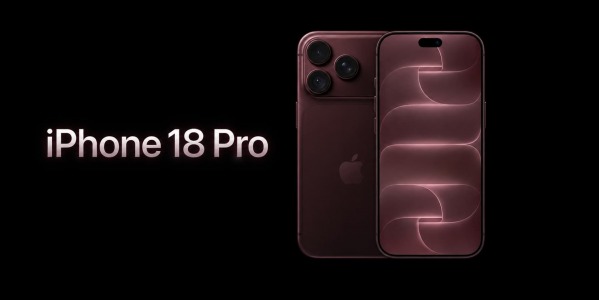
What's new in iPhone 18 Pro?
On September 9, 2026, at 8:00 PM Bulgarian time, Apple held its highly anticipated presentation, during which the company introduced the new...


